Frame rate
How to Convert a Video to 120fps on iPhone, and When It’s Actually Worth It
Before you convert a video to 120fps, check one thing: the screen it will be watched on. On a 120Hz display, 120fps looks smoother than 60fps. On a 60Hz screen, or after most uploads, you mostly get a bigger file. This guide covers when 120fps pays off, why a 60fps source converts better than a 30fps one, and how to do it on your iPhone.
THE SHORT ANSWER
- To convert a video to 120fps and actually make it smoother, new frames have to be generated between the existing ones (frame interpolation). Changing the frame rate in an export setting usually just repeats frames.
- 120fps is worth it when the video will be watched on a 120Hz screen (ProMotion iPhones, 120Hz monitors) or slowed down later in an editor. For a 60Hz screen, YouTube, TikTok, or Instagram, 60fps is the practical target.
- 60fps → 120fps is the easy case: one new frame per gap. 30fps → 120fps needs three, so mistakes show more. In FrameFlo, 120fps is a Pro feature; the free version goes up to 60fps.
Slow a 30fps clip to quarter speed and only 7.5 new pictures appear each second. Start from 120fps and you keep 30. This difference shows up on any screen. (A simplified animation that recreates the effect.)
Is 120fps worth it? It depends on where it’s watched
A 120fps video holds 120 pictures per second. Adding frames only helps if something downstream can show them, so the answer depends on your goal and your screen.
| Your goal or screen | Is 120fps worth it? | Why |
|---|---|---|
| Watching on a 120Hz screen (ProMotion iPhone, 120Hz monitor) | Yes | The screen can show up to 120 pictures per second |
| Slowing it down later in an editor | Yes | Half speed still gives 60 frames per second; quarter speed gives 30 |
| Speed ramps (fast, then slow) | Yes | The slow section still has enough frames |
| Watching on a 60Hz screen | Not really | The screen can only show 60 pictures per second |
| Posting to YouTube, TikTok, or Instagram | Usually not | None of them document 120fps playback (see below) |
| Slow, calm footage | Not really | Little visible difference even at 60fps |
The slow-motion case is the one people underestimate. Slow a 30fps clip to quarter speed in an editor and you’re left with 7.5 frames per second, which looks like a slideshow. Start from 120fps and the same slowdown keeps 30 frames per second, as smooth as a normal video.
What YouTube, TikTok, and Instagram document
- YouTube lists common frame rates as “24, 25, 30, 48, 50, 60 frames per second (other frame rates are also acceptable).” Its bitrate tables call 48, 50, and 60 “high frame rate.” As of October 2026, the page doesn’t mention 120fps.
- TikTok’s developer documentation for posting videos lists a minimum of 23fps and a maximum of 60fps.
- Instagram (Meta’s developer documentation for Reels) lists “Frame rate: 23-60 FPS.”
None of these promise to play your video back at 120fps. If a platform is the destination, convert to 60fps and save the time and file size. Our guide to converting 30fps to 60fps on iPhone covers that.
Source: YouTube recommended upload encoding settings (YouTube Help), Media Transfer Guide (TikTok for Developers), IG User Media (Meta for Developers) (checked October 2026)
120Hz vs 120fps: what’s the difference?
Hz is a property of the screen: how many times per second it redraws. fps is a property of the video: how many different pictures it contains per second. You need both to see 120fps.
A 60Hz screen redraws 60 times a second, so a 120fps video can only show 60 of its pictures each second. The rest are never displayed, and it looks about the same as 60fps. The reverse is harmless: a 60fps video on a 120Hz screen simply shows each frame twice.
Notice the gaps: going from 30 to 60fps cuts 16.7 ms off every frame, while 60 to 120fps cuts only 8.3 ms. That’s why the jump to 120fps is real but smaller than the jump to 60fps. For more on what each frame rate is good for, see 30fps vs 60fps vs 120fps.
Which iPhones have a 120Hz (ProMotion) display?
Apple calls its up-to-120Hz display ProMotion. Its tech specs list “ProMotion technology with adaptive refresh rates up to 120Hz” (or “Super Retina XDR display with ProMotion”) for these models:
| iPhone model | Display |
|---|---|
| iPhone 13 Pro, 13 Pro Max | ProMotion, up to 120Hz |
| iPhone 14 Pro, 14 Pro Max | ProMotion, up to 120Hz |
| iPhone 15 Pro, 15 Pro Max | ProMotion, up to 120Hz |
| iPhone 16 Pro, 16 Pro Max | ProMotion, up to 120Hz |
| iPhone 17, iPhone Air, iPhone 17 Pro, 17 Pro Max | ProMotion, up to 120Hz |
| iPhone 18 Pro, 18 Pro Max, iPhone Duo | ProMotion, up to 120Hz |
| iPhone 13, 13 mini, 14, 15, 15 Plus, 16, 16 Plus, 16e, 17e | No ProMotion listed |
If your model isn’t in the table, open its Tech Specs page and look for “ProMotion” under Display.
Source: Apple Tech Specs for iPhone 13 Pro, iPhone 14 Pro, iPhone 15 Pro, iPhone 16 Pro, iPhone 17, iPhone Air, iPhone 17 Pro, iPhone 18 Pro, iPhone Duo, iPhone 16, iPhone 16e, iPhone 17e (and the matching Max/Plus/mini pages) (checked October 2026)
Two settings cap a ProMotion iPhone at 60. Limit Frame Rate (Settings → Accessibility → Motion) “limits the maximum frame rate of the display to 60 frames per second” on ProMotion models. Low Power Mode does the same to the display refresh rate. Turn both off before you judge a 120fps video.
Source: Customize onscreen motion on iPhone, Save battery life with Power Modes on iPhone (Apple Support, checked October 2026)
60fps to 120fps vs 30fps to 120fps
Both end up as 120fps files, but the share of frames the AI has to invent is very different.
| Conversion | New frames per gap | Share of generated frames | Gap between real frames | Frames generated for a 10-second clip |
|---|---|---|---|---|
| 30fps → 60fps | 1 | 1 in 2 | 33.3 ms | About 300 |
| 30fps → 120fps | 3 | 3 in 4 | 33.3 ms | About 900 |
| 60fps → 120fps | 1 | 1 in 2 | 16.7 ms | About 600 |
Why 60fps → 120fps is the easy case
Real frames in a 60fps clip are only 16.7 ms apart, so things don’t move far between them and the in-between picture is easier to estimate. Only one frame is generated per gap. Even if it’s slightly off, it’s on screen for just 8.3 ms before a real frame takes over.
Why 30fps → 120fps is harder
At 30fps the real frames are 33.3 ms apart, and motion between them is bigger. Three frames are estimated from the same pair, so a wrong guess stays on screen for three frames in a row (about 25 ms). Warped edges and smearing are easier to notice than in a 60fps conversion.
If your clip is 30fps, try 60fps first. Pick 120fps when you have a clear reason, like a 120Hz screen or slow-motion editing. A 24fps clip can also be converted to exactly 120fps, but its real frames are 41.7 ms apart, which makes estimation harder still.
About online “120fps converters”
Many online converters and export screens let you type 120 as the frame rate. Unless they say they generate new frames, they usually fill the gaps by repeating existing ones: the file says 120fps, the motion is unchanged. A conversion that finishes almost instantly is a good hint that nothing was generated. You also have to upload the video. If you’re not sure what a tool does, our explainer on what frame interpolation is shows how to tell.
How to convert a video to 120fps on iPhone with FrameFlo
FrameFlo is my app, so keep that in mind as you read this section. It runs the RIFE interpolation model on the iPhone itself. The video is never uploaded, and it works in airplane mode.
120fps output is a Pro feature (a one-time purchase, not a subscription; see the App Store for the price). The free version converts clips up to 10 seconds to 60fps at the same length, and you can save that result. Trying 60fps first is the cheapest way to see how well your footage interpolates.
- Pick the videoOpen FrameFlo and choose a clip from your Photo Library or the Files app.
- Check the source frame rateThe Video Info screen shows the clip’s frame rate in the Before column. Values at or below it can’t be selected, so a 30fps clip offers 60 and 120, and a 60fps clip offers only 120. A clip that’s already 120fps or higher has nothing to choose in Same Length.
- Set Duration to Same Length120fps conversion keeps the running time and adds frames. If you choose Slow Motion instead, the Frame Rate options disappear.
- Set Frame Rate to 120If you leave it on Same, no new frames are generated.
- Choose Inference Resolution, Export Quality, and Output ResolutionInference Resolution is Low, Medium, or High. Export Quality is Low, Medium, or High (3, 8, or 20 Mbps). Output Resolution is a plain resize, not AI upscaling; if in doubt, leave it on No Change.
- Check the estimate and tap Add to QueueThe After (Estimated) column shows the new frame rate and file size, plus a processing load rating from Light to Very Heavy.
- Compare, then saveYou get a notification when it’s done. Drag the split slider to compare before and after, then save to your Photo Library or Files. Judge the 120fps result on a 120Hz screen.
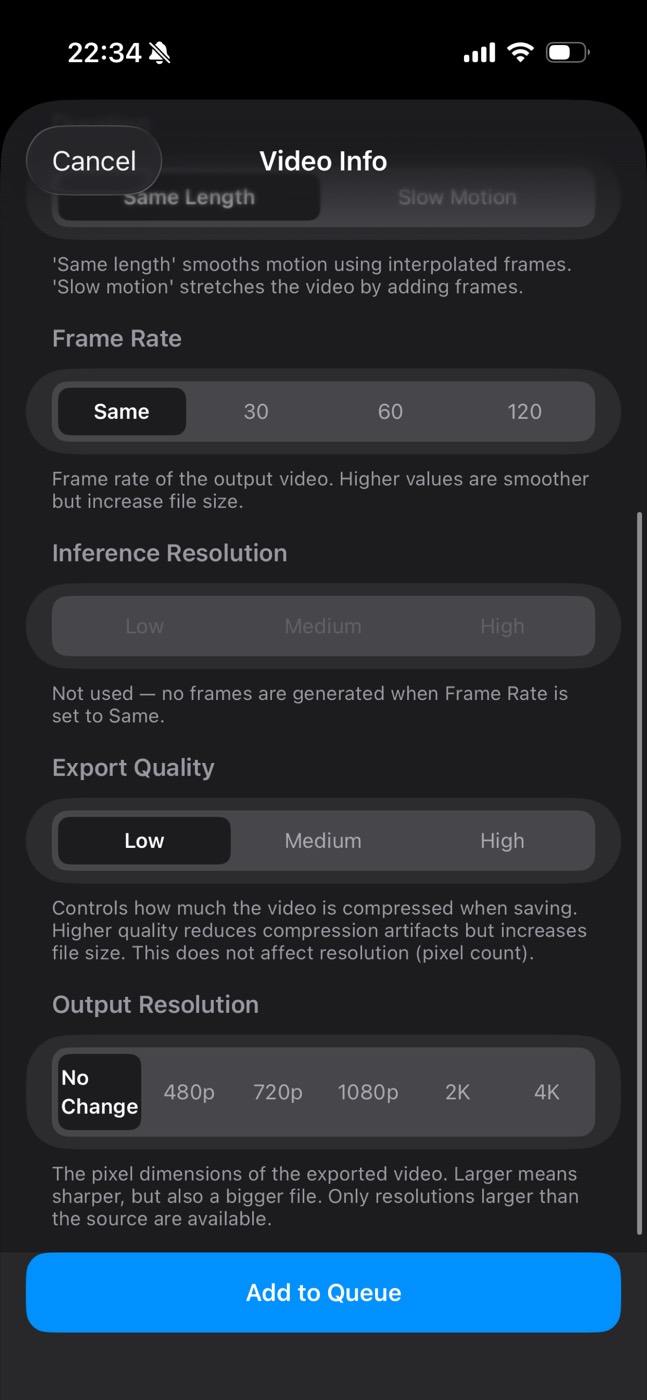
For long clips, keep the app open and turn on Keep Screen Awake While Processing (also available for free). With Pro, processing continues for up to about 30 seconds after you switch apps, which is the limit iOS gives apps in the background. Stay away longer and the job starts over when you return.
Try free 60fps on your own clip first. If interpolation suits your footage, 120fps is one setting away.
Get FrameFlo on the App StoreFree to try · iPhone with iOS 16 or later
Settings, processing load, and file size
- Inference Resolution is the image size the AI uses internally to estimate motion. Higher settings handle fine detail better but take longer and use more memory. They don’t change the size of the saved video. The free version uses Low; Medium and High need Pro.
- Memory: 120fps means many more frames to compute, and heavy settings can use more than 2GB of memory. On iPhones with less memory (roughly iPhone 12 and older), iOS may stop the job. Lower the Inference Resolution, don’t push Output Resolution too high, trim the clip, or close other apps.
- File size generally grows with more frames. The After (Estimated) column shows the expected size before you start. If you want fine motion to survive compression, consider Medium or High Export Quality (Pro).
- Time depends on clip length, target frame rate, Inference Resolution, and your iPhone model. The processing load rating is the best guide. Test a few seconds that include the trickiest motion before you run the whole clip.
Recording at 120fps vs converting later
iPhone can capture high frame rates directly. According to Apple, Slo-mo records at 1080p 240fps on the back camera and 1080p 120fps on the front by default. You can switch the back camera to 120fps in Settings → Camera → Record Slo-mo, and supported models add 4K at 120fps. On iPhone 16 Pro, 17 Pro, and 18 Pro models and iPhone Duo, you can also pick 120 FPS in regular Video mode.
Source: Change video recording settings on iPhone, Record a video with your iPhone camera (Apple Support, checked October 2026)
| Comparison | Recorded at 120/240fps | Converted to 120fps later |
|---|---|---|
| What the frames are | All real, captured frames | Real frames plus AI-estimated ones |
| When you decide | Before you hit record | Any time after |
| Motion accuracy | Exact | Estimated; thin lines and fast motion can glitch |
| Best for | Form checks, key moments you know you’ll slow down | Clips you can’t reshoot; smoothing or slow-motion material |
If you know in advance you’ll want slow motion, recording in Slo-mo gives the cleanest result. Converting later is for footage you can’t shoot again.
If you want a slow-motion video, use Slow Motion mode instead
Converting to 120fps and then slowing it down in another app works, but FrameFlo’s Slow Motion mode (2× or 4×) gets there in one step. It uses the generated frames to stretch the clip and keeps the original frame rate: a 30fps clip slowed 4× stays 30fps and becomes four times longer. That’s the same three new frames per gap as 30fps → 120fps. The original audio is included at normal speed from the start, so it won’t match the slowed video and goes silent after the original length.
You want the slow-motion video itself, ready to share. Can be created and previewed for free; saving it needs Pro.
You’ll watch on a 120Hz screen, or you want to control the speed yourself in an editor. Pro.
Our guide on making a normal video slow motion after recording covers this in more detail, including when the Photos app is enough.
When 120fps conversion doesn’t work well
Frame interpolation struggles with the same things at any frame rate. Going from 30fps to 120fps makes problems more visible, because three out of four frames are generated.
- Very fast motion: if something moves far between two frames, the model can lose track of it and warp the edges.
- Objects passing in front of others: the hidden area has to be guessed, and it can smear.
- Thin lines and text: hair, limbs, fences, nets, and captions are the usual trouble spots.
- Scene cuts: two unrelated shots have no motion between them, so you may see one odd frame at the cut.
- See-through things, splashing water, things that suddenly appear: motion is hard to estimate.
- Very low frame rates: around 10fps or less, the gaps are too big to fill convincingly.
Interpolation changes motion only. It doesn’t sharpen blur, remove noise, fix compression artifacts, or stabilize shaky footage, and it can’t restore frames that were dropped during recording.
If something looks off, lower the target from 120fps to 60fps, raise the Inference Resolution, or process the troublesome section separately. The split slider lets you check before saving, and sometimes the right call is to keep the original. If the video looked choppy to begin with, make sure the cause is actually the frame rate: our guide to why a video is choppy on iPhone helps you check. To compare other apps, see how to choose a frame interpolation app for iPhone.
FAQ
Can you convert a 60fps video to 120fps?
Yes. It’s the easiest conversion to 120fps, because only one frame is generated between each pair of real frames. You’ll only see the difference on a 120Hz screen, or after slowing the clip down.
Is there a free way to convert video to 120fps?
Online converters that let you pick 120fps usually repeat frames, so the result isn’t smoother, and you have to upload the video. In FrameFlo, 120fps is part of Pro (a one-time purchase); the free version converts clips up to 10 seconds to 60fps and saves the result. On a computer, desktop interpolation software is another route; see what frame interpolation is for the options.
Does YouTube support 120fps?
YouTube’s upload settings page lists common frame rates up to 60fps and says other frame rates are acceptable, but it doesn’t mention 120fps playback (as of October 2026). For YouTube, 60fps is the practical target.
Can you tell the difference between 60fps and 120fps?
Only on a 120Hz screen that plays every frame, and even then it’s smaller than the jump from 30fps to 60fps. Each frame shrinks from 16.7 ms to 8.3 ms, compared with 33.3 ms to 16.7 ms for 30 to 60fps.
Is 120Hz the same as 120fps?
No. 120Hz describes how often a screen refreshes; 120fps describes how many pictures a video contains per second. A 120fps video needs a 120Hz screen to show all its frames.
Can FrameFlo make 240fps?
No. The highest frame rate in FrameFlo is 120fps. For 240fps footage, record in the Camera app’s Slo-mo mode; the back camera records 1080p at 240fps by default.
How do I record 120fps video on iPhone?
Use Slo-mo mode, or on iPhone 16 Pro, 17 Pro, and 18 Pro models and iPhone Duo, choose 120 FPS in Video mode. Slo-mo videos play back slowly in Photos, and you can edit which part is slowed.
Does converting to 120fps improve video quality?
No. It makes motion smoother on a screen that can show it. Resolution, sharpness, and noise stay the same, and files usually get bigger.
How long does it take to convert a video to 120fps?
It depends on the clip length, the source frame rate, Inference Resolution, and your iPhone model. 120fps generates more frames than 60fps, so it takes longer. The processing load rating on the Video Info screen gives you an estimate before you start.

Written by punimaru, the developer of FrameFlo. App details are based on how the app is actually built. Since this is my own app, I’ve also noted where it isn’t the right tool and what else you can use.