Slow motion
How to Slow Down a Video in iMovie on iPhone (and Why It Gets Choppy)
To slow down a video in iMovie on iPhone, tap the clip, tap the Speed button, and drag the slider to the left. That part is easy. The catch is that a regular 30fps clip often turns choppy when you slow it down, and no setting in iMovie fixes that. This guide covers the steps, the slowest speed iMovie allows, and how to get smooth slow motion anyway.
THE SHORT ANSWER
- How: in a movie project, tap the clip in the timeline, tap Speed, and drag the slider left. You can slow down just part of a clip by adding ranges. In Storyboard and Magic Movie projects, the slowest speed is 1/8 of the original, according to Apple.
- Why it's choppy: iMovie doesn't create new frames. A 30fps clip at 1/2 speed shows only 15 frames per second, and 7.5 at 1/4. Slow motion stays smooth only down to "recorded fps ÷ 30" (1/2 for a 60fps clip).
- How to keep it smooth: record at 60fps or in Slo-mo, or generate the missing frames first with a frame interpolation app, then edit that clip in iMovie at normal (1x) speed.
A 30fps clip slowed to 1/4 speed in iMovie shows only 7.5 new frames per second. When the missing frames are generated first, the same 4× slow motion keeps 30. (An animation that recreates the difference.)
How to slow down a video in iMovie on iPhone
iMovie, Apple's free editing app, has three project types: Magic Movie, Storyboard, and Movie. All of them have a Speed control, but a movie project gives you the most control, including slowing down only part of a clip. The steps below follow Apple's iMovie User Guide for iPhone.
In a movie project
- Create a movie projectIn iMovie, tap Start New Project, then tap Movie. If you don't see Start New Project, tap Projects to go back to the Projects browser.
- Pick your video and tap Create MovieTap the clips you want (a checkmark appears on each), then tap Create Movie at the bottom of the screen.
- Tap the clip in the timelineThe inspector opens at the bottom of the screen.
- Tap the Speed buttonA yellow bar with a range handle at each end appears under the clip.
- Drag the slider leftLeft slows the clip down; right speeds it up. The relative speed shows below the clip: 1/2x means half speed, 2x means double.
- Tap outside the inspector when you're doneTo put the whole clip back to normal speed, tap Reset in the inspector.
Source: Adjust video speed in iMovie on iPhone and Create a movie project in iMovie on iPhone (Apple, checked October 2026)
Slow down only part of a clip
This is how you get the classic "normal speed, slow-mo for the big moment, back to normal" effect. You split the clip into ranges and give each one its own speed.
- Drag a yellow range handle to mark the part you want to slow down.
- Or tap Add in the inspector to create a range border at the playhead.
- Each range shows up as a vertical white line at the bottom of the clip. Select a range and set its speed.
The same Speed panel has a Freeze button, which holds the frame at the playhead for as long as you drag the range. Apple notes that the frozen part has no audio.
In a Storyboard or Magic Movie project
Tap the clip, then tap the Speed button at the bottom of the screen. Drag the speed slider left to slow it down, or tap Reset (to the right of the slider) to go back to the original speed.
Save the slowed-down video to Photos
In the Projects browser, tap the project, tap the Share button, then tap Share Video. Tap Options to pick a resolution and frame rate, go back, and tap Save Video (Apple).
What's the slowest speed in iMovie?
In Storyboard and Magic Movie projects, Apple says you can slow a clip to a minimum of one-eighth of its original speed and speed it up to a maximum of twice the original. For movie projects, Apple's speed page doesn't give a minimum, so treat 1/8 as the Storyboard and Magic Movie number.
Source: Edit clips in Magic Movies and storyboard projects in iMovie on iPhone (Apple, checked October 2026)
Going that slow rarely helps, though. At 1/8 speed, a normal 30fps clip shows fewer than 4 frames per second, which looks like a slideshow. The next section explains why.
Why iMovie slow motion looks choppy
Apple's iMovie guide doesn't describe any feature that creates in-between frames (frame interpolation or optical flow). When you slow a clip down, iMovie shows the frames you already have for longer. The number of new pictures per second drops to "recorded fps × speed."
Here's what that looks like for a 5-second clip recorded at 30fps:
| Speed in iMovie | Length | New frames per second | Each frame on screen | How it looks |
|---|---|---|---|---|
| 1x (normal) | 5 sec | 30 | about 0.033 sec | Smooth |
| 1/2x | 10 sec | 15 | about 0.067 sec | Visibly choppy |
| 1/4x | 20 sec | 7.5 | about 0.13 sec | Steppy, almost frame by frame |
| 1/8x | 40 sec | 3.75 | about 0.27 sec | A slideshow of stills |
This isn't a bug or a bad export setting. The frames simply aren't in the file, and no export option can add them. Even in a project that exports at 60fps, a slowed-down 30fps clip has nothing new to fill the extra slots.
How slow can you go before it gets choppy? (by frame rate)
The flip side: if your clip has plenty of frames, iMovie slow motion looks great. As a rule of thumb, motion stays smooth while you keep about 30 new frames per second.
| Recorded at | 1/2x | 1/4x | 1/8x | Smooth down to |
|---|---|---|---|---|
| 30fps (standard video) | 15 fps | 7.5 fps | 3.75 fps | Gets choppy right away |
| 60fps | 30 fps | 15 fps | 7.5 fps | 1/2x |
| 120fps | 60 fps | 30 fps | 15 fps | 1/4x |
| 240fps | 120 fps | 60 fps | 30 fps | 1/8x |
The shortcut is "recorded fps ÷ 30." A 60fps clip can go to 1/2, a 120fps clip to 1/4, and a 240fps clip to 1/8 while still keeping 30 frames per second.
These numbers count the frames in the source clip. On export, Apple says iMovie offers 60fps only when more than half of your project media is 1080p or 4K video at 60fps; otherwise the movie is saved at a lower frame rate. Apple's guide also doesn't say how iMovie treats Slo-mo videos, such as whether the slow section you set in Photos carries over.
Not sure what your clip was recorded at? See how to check a video's frame rate on iPhone. If it's above 30fps and you're on iOS 18 or later, you can slow it down in the Photos app without iMovie at all (here's why Photos won't slow down some videos).
How to make iMovie slow motion smooth
The fix is to give iMovie a clip that already has enough frames. There are two ways to get one.
Option 1: Record at 60fps or in Slo-mo
The most reliable fix happens before you shoot. Choose a 60fps format in Settings > Camera > Record Video (options depend on your model), or use the Camera app's Slo-mo mode. Faster frame rates make larger files, and this only helps with future videos; see 30fps vs 60fps vs 120fps on iPhone for which to pick.
Source: Record a video with your iPhone camera (Apple, checked October 2026)
Option 2: Generate the frames first, then edit in iMovie
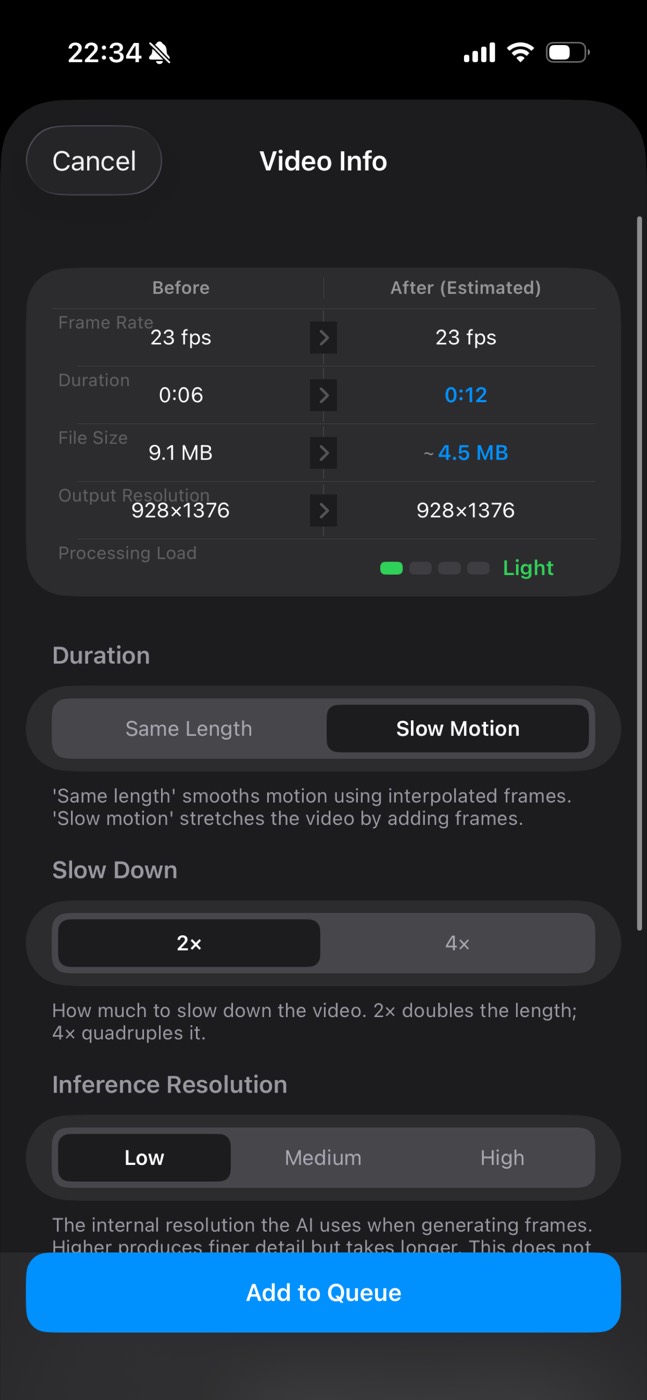
For a 30fps clip you can't reshoot, frame interpolation can create the missing frames: it estimates how things moved between two frames and draws the picture in between (how frame interpolation works). FrameFlo, the app I make, does this on the iPhone. Its Slow Motion mode makes a clip 2× or 4× longer and keeps the original frame rate, so a 30fps clip stays 30fps.
- Make the slow motion in FrameFloPick the clip, set Duration to Slow Motion, choose 2× or 4× under Slow Down, and tap Add to Queue. 2× adds one new frame between each pair; 4× adds three.
- Compare and saveDrag the split slider to compare it with the original, then save it to your Photo Library. Saving slow motion requires Pro.
- Bring it into iMovieStart a movie project and choose the new clip. It shows up like any other video in your library.
- Leave iMovie's speed at 1xUse iMovie for cuts, titles, and music only. If you slow the 2× clip down again by 1/2, you're back to 15 frames per second.
Both versions run twice as long. The difference is that the first repeats every frame, while the second has a new picture in every slot. That's the whole difference between choppy and smooth.
You can stack the two approaches, too. Take a 60fps clip, make it 4× slow in FrameFlo (still 60fps, four times as long), then set it to 1/2x in iMovie. You still have 30 new frames per second, for a smooth 8× slow motion overall.
- Steady, continuous motion: a swing, a jump, a pet running
- Clips that are sharp in each frame
- Short moments you want to show off in slow motion
- Very fast motion or heavy shake
- Thin lines, splashing water, see-through surfaces
- Scene cuts (one odd frame can appear at the cut)
Frame interpolation doesn't sharpen the picture. Motion blur and shake stay in, so check the result with the split slider before you save.
| FrameFlo | Free version | Pro (one-time purchase) |
|---|---|---|
| Clip length | Up to 10 sec (or the first 10 sec of a longer clip) | Any length |
| Slow motion 2× / 4× | Create and preview | Create, preview, and save |
| Quality settings | Low inference resolution, Low export quality (3 Mbps), No Change resolution | Medium and High, output 480p–4K |
Pro is a one-time purchase, not a subscription; see the App Store for the price. The full app walkthrough is in how to make a normal video slow motion after recording.
Turn a 30fps clip that stutters in iMovie into smooth slow motion, then edit it in iMovie as usual.
Get FrameFlo on the App StoreCreate and preview slow motion free · Saving requires Pro (one-time) · iPhone with iOS 16 or later
Prefer to do everything inside one editor? CapCut has a Smooth slow-mo option that generates in-between frames with optical flow. Whether it's free varies; our CapCut smooth slow-mo guide covers the details and what to do when it doesn't work.
What happens to the audio
When you change speed in iMovie
By default, iMovie keeps the pitch of the audio when you slow a clip down. The sound plays slower, but voices don't get deeper. If you want the pitch to follow the speed, tap the Project Settings button and turn on Speed changes pitch (Apple).
When you import FrameFlo slow motion
A FrameFlo slow-motion clip contains the original audio at normal speed, starting from the beginning. Because the video is stretched, sound and picture won't line up, and the audio ends partway through.
To mute it in iMovie, tap the clip, tap the Audio button, then tap the Mute button next to the volume slider (Apple). Then add music or a voiceover.
iMovie slow motion not working? Quick checks
- Can't find the Speed button. In a movie project, tap the video clip in the timeline first; Speed is in the inspector at the bottom. In Storyboard and Magic Movie, tap the clip, then look at the bottom of the screen.
- Can't go slower than 1/8. That's the documented minimum for Storyboard and Magic Movie projects. A 30fps clip is already down to 3.75 frames per second there, so going further wouldn't look smooth anyway.
- Cinematic mode video. Apple warns that once you change a Cinematic clip's speed, you can no longer edit its Cinematic effects. Finish focus edits first.
- It works, but it's choppy. Nothing is broken; the clip doesn't have enough frames. Check the frame rate table, and if you're short, generate the frames first.
- No 60fps export option. It appears only when more than half the project is 1080p or 4K at 60fps. For sections slowed down to 30 frames per second, exporting at 30fps loses nothing.
- Only the preview stutters. Play the exported file in Photos. If it also stutters at normal speed, the cause may be elsewhere; see why videos look choppy on iPhone.
FAQ
Why is my iMovie slow motion choppy?
iMovie slows a clip by showing its existing frames for longer; it doesn't create new ones. A 30fps clip at 1/2 speed shows 15 frames per second, which looks choppy. It stays smooth only down to "recorded fps ÷ 30."
What's the slowest speed in iMovie on iPhone?
Apple documents a minimum of one-eighth of the original speed for Storyboard and Magic Movie projects (and a maximum of 2x). Apple's page for movie projects doesn't state a minimum.
Does iMovie on iPhone have optical flow or frame blending?
Apple's iMovie User Guide for iPhone doesn't describe any feature that generates in-between frames. For smooth slow motion, use a clip recorded at 60fps or higher, or one where the frames were generated first with a frame interpolation app.
Does slowing down a clip in iMovie change the audio?
The audio slows down with the video, but iMovie keeps its pitch by default. Turn on "Speed changes pitch" in Project Settings if you want slowed audio to sound lower.
Can I slow down only part of a clip in iMovie?
Yes, in a movie project. After tapping Speed, drag the yellow range handles or tap Add to split the clip into ranges, then give each range its own speed.
Can I use FrameFlo videos in iMovie?
Yes. Save the result to your Photo Library and it appears in iMovie's media picker. For 2× or 4× slow-motion clips, keep iMovie's speed at 1x so you don't run short of frames again.
Can iMovie speed a video up, too?
Yes. Drag the Speed slider to the right. In Storyboard and Magic Movie projects, the maximum is twice the original speed.

Written by punimaru, the developer of FrameFlo. App details are based on how the app is actually built. Since this is my own app, I've also noted where it isn't the right tool and what else you can use. iMovie steps were checked against Apple's iMovie User Guide for iPhone in October 2026.