Frame rate
How to Check the Frame Rate (FPS) of a Video on iPhone: 4 Ways
Photos won’t let you slow a video down, or you want to know if converting it to 60fps is worth it. Either way, you first need the frame rate of a video you’ve already shot, and most search results only explain how to set up future recordings. Here are four ways to check, how to read odd numbers like 29.97, and what to do with the answer.
THE SHORT ANSWER
- In Photos, open the video and swipe up. Depending on the video and your iOS version, the info panel may show the frame rate, but Apple doesn’t promise it. For a sure answer, choose the video in a free app like FrameFlo (no processing needed) or check the file on a computer.
- Settings → Camera → Record Video shows the setting for your next video, not the frame rate of one you already have. Auto FPS can drop recordings to 24fps in low light, so the two often differ.
- The number decides your next step. Photos can slow down videos recorded above 30fps (like 60fps) on iOS 18 or later. For 30fps or less, smooth slow motion takes frame interpolation.
Which method should you use?
There are four ways to find a video’s frame rate (frames per second, or fps). Pick based on whether you want to stay on the iPhone and how sure you need to be.
| Method | What you need | What it tells you | Watch out for |
|---|---|---|---|
| 1. Photos info panel | Just your iPhone | Device, date, camera details, file size; frame rate on some videos | Frame rate isn’t always shown |
| 2. FrameFlo’s Video Info | A free app | The video’s frame rate, duration, and file size | You have to install it (no processing needed) |
| 3. Camera settings | Just your iPhone | The setting for future recordings | Not the frame rate of videos you already have |
| 4. A computer | A Mac or Windows PC | The file’s frame rate | You have to copy the video over |
Start with Method 1. If it shows no frame rate, use Method 2 or 4. Method 3 is often suggested, but it doesn’t answer the question; here’s why.
Method 1: the Photos info panel
The quickest check is the info panel in Photos. Apple’s iPhone User Guide describes it as the place to see a photo or video’s metadata, the information saved when it was recorded.
- Open the video in PhotosTap the video so it fills the screen.
- Swipe upOr tap the Info button (ⓘ).
- Look for the frame rateApple lists the device that captured it, the date and time, and “camera metadata such as lens, shutter speed, file size, and more.” On some videos and iOS versions, the frame rate shows up here too.
Note Apple’s wording: “Depending on the photo or video, you see the following details.” Frame rate isn’t on Apple’s list, so whether it appears depends on your iOS version and the video. Videos you received or exported from another app may show fewer details, so if you don’t see it, move on to Method 2 or 4.
Source: See photo and video information on iPhone (Apple) (checked October 2026)
Quick test: can Photos change the speed? (iOS 18 and later)
This won’t give you an exact number, but it tells you which side of 30fps a video is on. Apple says that in iOS 18 and later, “if your video is captured at a frame rate higher than 30FPS, you can slow down the video.”
Open the video, tap Edit, then tap Video. If the Playback Speed button lets you pick a slower speed, the video is above 30fps (for example, 60fps); if it doesn’t, it’s most likely 30fps or less. Apple also notes that “the playback options available depend on the format of the video you captured,” so the number of speeds varies.
Sources: How to edit videos on your iPhone (Apple Support), Trim video length, adjust speed, and edit audio on iPhone (Apple) (checked October 2026)
No speed option at all? Why Photos won’t slow down some videos, and the fixes covers every case.
Method 2: FrameFlo’s Video Info screen (free)
If Photos doesn’t show it, you can check on the iPhone with FrameFlo, the frame interpolation app I make. It shows a video’s frame rate as soon as you pick it, so you can check for free without processing anything.
- Pick the videoOpen FrameFlo and choose a clip from your Photo Library or the Files app. Files works for videos you received or copied from a computer.
- Read the Before columnThe Video Info screen opens with Before and After (Estimated) columns. The Frame Rate under Before (for example, 30 fps) is the video’s own frame rate. Its duration and file size are listed too.
- Stop there if you only wanted to checkProcessing only starts when you tap Add to Queue. Tap Cancel and nothing is processed.
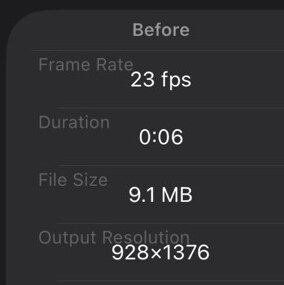
FrameFlo rounds to a whole number, so a 29.97fps video shows as 30 fps and a 59.94fps video as 60 fps. If you do process a video later, it happens entirely on the iPhone and nothing is uploaded.
If you only need the number once, Method 1 or 4 works without installing anything. The app earns its place when the answer is “30fps” and you want that clip smoother or in slow motion.
Pick a video and see its frame rate right away. Checking is free, and so is converting a 10-second clip to 60fps.
Get FrameFlo on the App StoreFree to try · iPhone with iOS 16 or later
Method 3 (caution): Camera settings show future videos
Many guides send you to Settings → Camera → Record Video. That screen lists resolution and frame rate combinations (such as 1080p HD at 30 fps or 4K at 60 fps), and the selected one is your current setting. Depending on the model, Apple says you can choose 24, 25, 30, 60, or 120 fps.
But that’s the setting for your next video. It doesn’t tell you the frame rate of videos you already have.
Why a video’s frame rate can differ from the setting
- It was recorded before you changed the setting. Each video keeps the frame rate it was recorded with. A 60fps setting today says nothing about last month’s videos.
- It was switched in the Camera app. In Video mode, you can tap the resolution and frame rate values at the top of the screen to change them on the spot, so Settings may not match what you actually used.
- Auto FPS kicked in. In low light, iPhone can automatically drop to 24 fps (see below).
- It was shot in Slo-mo or Cinematic mode. These have their own settings. By default, Slo-mo records 1080 HD at 240 fps on the back camera and 120 fps on the front, and Cinematic records 1080 HD at 30 fps on supported models.
- Someone sent it to you or you saved it from an app. The sender’s settings, and any conversion during sending or saving, decide the frame rate.
Sources: Record a video with your iPhone camera (Apple), Change video recording settings on iPhone (Apple) (checked October 2026)
How to set the frame rate for future videos
- Open Settings → Camera → Record VideoThis is where the default format lives.
- Choose a formatPick from the list of formats and frame rates your iPhone supports. The options depend on the model.
- Check the Camera screenIn Video mode, the values at the top of the screen show what you’ll record with. Tap them to switch on the spot.
Apple notes that faster frame rates and higher resolutions result in larger video files. For which one to pick, see 30fps vs 60fps vs 120fps on iPhone.
What is Auto FPS on iPhone?
In Apple’s words, Auto FPS lets iPhone “improve the video quality in low-light situations by automatically reducing the frame rate to 24 fps.” It’s in Settings → Camera → Record Video, and it looks different depending on your model:
| What you see | Your choices |
|---|---|
| Auto FPS | Apply it to only 30-fps video, to both 30- and 60-fps video, or turn it off |
| Auto Low Light FPS | A single on/off switch |
Source: Change video recording settings on iPhone (Apple) (checked October 2026)
Should you turn Auto FPS off?
It’s a trade-off. With it on, videos shot indoors or at night can drop to 24fps: brighter, but choppier, and 24fps isn’t above 30fps, so Photos can’t slow those clips down. With it off, your frame rate holds, but you lose the low-light improvement Apple describes.
If you want smooth motion or plan to slow clips down later, limit Auto FPS to 30-fps video or turn it off. If brighter night footage matters more, leave it on. And if only your night videos come out at a low frame rate, this setting is the first thing to check.
Method 4: check on a computer
Copy the video to a computer and the file’s details include its frame rate. This works even when Photos doesn’t show it, and for videos from any camera.
Mac: QuickTime Player
Apple says QuickTime Player can display information including “size, and frame rate (fps) for video files.”
- Open the videoOpen the file in QuickTime Player.
- Show the Movie InspectorChoose Window → Show Movie Inspector, or press Command-I.
- Read the frame rateFind the fps value in the details.
Source: View information about a media file in QuickTime Player on Mac (Apple) (checked October 2026)
Windows: file Properties
- Open PropertiesRight-click the video file and choose Properties.
- Open the Details tabSwitch to the Details tab.
- Look under VideoThe Frame rate entry in the Video section is the video’s frame rate.
Depending on your Windows version and the file format, the entry may be labeled differently or left blank. If so, try Method 2.
Before you use an online checker
Some websites show a video’s frame rate, but many work by uploading the file to a server. You don’t need to hand a family video to a third party just to learn one number, and every method above keeps it on your own device.
How to read the number (29.97, 59.94, 23.976)
You may see 29.97 instead of 30. That’s normal. Here’s what the common values mean:
| Value you see | Treat it as | Common source | Slow down in Photos? (iOS 18+) |
|---|---|---|---|
| 23.976 / 23.98 / 24 | 24fps | A 24fps setting, or Auto FPS in low light | No |
| 25 | 25fps | PAL formats (a TV format used in many countries in Europe, Africa, Asia, and South America) | No |
| 29.97 / 30 | 30fps | Most everyday iPhone videos | No |
| 50 | 50fps | Usually other cameras set to PAL-region formats | Yes |
| 59.94 / 60 | 60fps | Videos recorded at a 60fps setting | Yes |
| 120 / 240 | 120 or 240fps | Slo-mo, or 120 FPS in Video mode on supported models | Yes |
29.97 is effectively 30fps
Values like 29.97, 59.94, and 23.976 come from TV broadcast standards. 29.97fps is exactly 30,000 ÷ 1,001 frames per second, and Microsoft’s developer documentation expresses it as the ratio 30,000/1001. It’s about 0.1% slower than 30, so it looks the same; read 59.94 as 60fps and 23.976 as 24fps.
Reference: VideoEncodingProperties.FrameRate (Microsoft Learn) (checked October 2026)
Odd values like 29.83 or 30.02
Screen recordings and some app exports use a variable frame rate, where the gap between frames changes as the clip goes. The reported number is then an average, so it can land on values like 29.83 or 30.02. Treat it as the nearest standard value, 30fps in this case (more in variable frame rate and laggy screen recordings).
Never changed anything? It’s probably 30fps
Apple’s iPhone User Guide for iOS 18 says, “By default, iPhone records video at 30 frames per second (fps).” If you’ve never touched the setting, assume 30fps.
That difference in how long each frame stays on screen is what you see as smoothness. 30fps vs 60fps vs 120fps on iPhone shows when it matters. If a clip stutters even though its frame rate looks fine, the cause is elsewhere: see why your video is choppy on iPhone.
Source: Change the camera’s video recording settings on iPhone (Apple, iOS 18) (checked October 2026)
What to do once you know the frame rate
Most people check because they want slow motion or smoother video. The answer splits the options cleanly.
- Photos can’t slow it down (Apple’s rule is above 30fps)
- iMovie can, but half speed leaves only 15 frames per second, which looks choppy
- Fix: frame interpolation generates the missing frames
- Photos can slow it down on iOS 18 or later, no extra app needed
- A 60fps clip at half speed still has 30 frames per second
- Want it even slower or on a 120Hz screen? Interpolation can still help
If it’s 30fps or lower
To keep the length and make motion smoother, convert it to 60fps with real interpolation, not a converter that only changes the number. How to convert 30fps to 60fps on iPhone explains the difference, and FrameFlo converts clips up to 10 seconds to 60fps and saves them for free. For slow motion, see how to make a normal video slow motion after recording; in FrameFlo, slow motion can be created and previewed for free, and saving it requires Pro (a one-time purchase).
If it’s 60fps or higher
On iOS 18 or later, Photos alone can slow it down, so you don’t need another app. The steps are in this guide to Photos’ speed setting. For a 120Hz screen or extra-slow playback, converting to 120fps is an option, and that guide is honest about when it isn’t worth it.
For next time
For anything you might want to slow down later, like kids’ sports, pets, or a golf swing, record at 60fps from the start. A glance at the values at the top of the Camera screen before you hit record is the easiest habit. If you’re curious how an app can fill in missing frames at all, see what frame interpolation is and how it works.
FAQ
What frame rate does iPhone record video at?
30fps unless you change it. Apple’s iPhone User Guide for iOS 18 says iPhone records video at 30 fps by default. Videos recorded at a 60fps setting, or dropped to 24fps by Auto FPS in low light, are exceptions, so check any video you care about.
Why doesn’t the Photos info panel show the frame rate?
It depends on your iOS version and the video. Apple says that “depending on the photo or video” you see different details, and frame rate isn’t on its list. Choose the video in FrameFlo to see its frame rate under Before, or check it on a computer.
What is Auto FPS on iPhone?
A setting that automatically lowers the frame rate to 24 fps in low light to improve video quality. You’ll find it in Settings → Camera → Record Video, where you can apply it to only 30-fps video, to both 30- and 60-fps video, or turn it off. Some models show a single Auto Low Light FPS switch instead.
I set 60fps. Why isn’t my video 60fps?
The usual causes are Auto FPS dropping to 24fps in low light, a different value chosen at the top of the Camera screen, or recording in another mode such as Cinematic. Videos recorded before you changed the setting keep their old frame rate.
Can I check the frame rate of a video someone sent me?
Yes. Save it to your Photo Library or the Files app, then use any method in this guide. You’ll see the frame rate of the file you received, which may differ from the original recording if it was converted along the way.
What frame rate are Slo-mo videos?
By default, Slo-mo records 1080 HD at 240 fps with the back camera and 1080 HD at 120 fps with the front camera. You can switch the back camera to 120 fps in Settings → Camera → Record Slo-mo, and supported models also offer 4K at 120 fps.
Can I change the frame rate of a video I already recorded?
The recording itself is fixed, and Camera settings only affect new videos. You can create a new, higher-frame-rate version with frame interpolation, which generates the in-between frames. Simply re-exporting at 60fps usually just duplicates frames.
Does it cost anything to check?
No. Photos and the computer methods are free, and so is choosing a video in FrameFlo to read its frame rate under Before. You don’t need to process anything.

Written by punimaru, the developer of FrameFlo. App details are based on how the app is actually built. Since this is my own app, I’ve also noted where it isn’t the right tool and what else you can use.