Troubleshooting
Why Is My iPhone Screen Recording Laggy? How to Fix Choppy Screen Recordings
The game ran fine while you played, but the screen recording plays back choppy. Or the recording looks fine in Photos and only stutters after you edit or post it. Laggy iPhone screen recordings come from four different causes, each with its own fix, so start by figuring out which one you have.
THE SHORT ANSWER
- Four causes: frames dropped under load (game + recording + heat), variable frame rate breaking in editors, the screen itself running at a low frame rate, and re-compression when you share or post.
- Best fixes before recording: turn off Low Power Mode and Limit Frame Rate (each caps ProMotion iPhones at 60 frames per second), keep the phone cool, leave at least 1 GB free, keep Game Mode on, and lower in-game graphics.
- After recording: iPhone has no frame rate setting for screen recording. A recording that's just low on frames can be smoothed with frame interpolation, but dropped moments can't be recovered, and text and scrolling interpolate poorly.
First, figure out which kind of lag you have
On iPhone, you start a screen recording from the Screen Recording control in Control Center, and it's saved to your photo library. Where the choppiness shows up tells you most of what you need to know. Run through these checks in order.
- Was the screen smooth while you recorded?If the game was already laggy before you hit record, the problem is the screen itself (Cause 3). If it got laggy the moment recording started, it's recording load (Cause 1).
- Play the original file in PhotosSmooth in Photos but choppy after posting or sending? That's re-compression or playback (Cause 4). Choppy only after exporting from an editor? Most likely variable frame rate (Cause 2).
- Look at how it stuttersIf it's choppy in Photos too, notice the pattern. Evenly steppy from start to finish means the recording simply has few frames (Cause 3); hitches and jumps during heavy scenes mean dropped frames (Cause 1).
- Check the frame rateKnowing the file's frame rate makes the call easier. Here's how to check a video's frame rate on iPhone.
| Cause | Typical symptom | Fixable afterward? |
|---|---|---|
| 1. Dropped frames under load | Laggy only while recording; hitches or jumps in busy scenes | No. Lost moments are gone; fix the next recording |
| 2. Variable frame rate | Fine in Photos; choppy or out of sync after editing or converting | Usually. Re-export from the original file |
| 3. Low frame rate on screen | Evenly steppy throughout; worse in fast motion | Often, with frame interpolation (text and UI may warp) |
| 4. Re-compression or playback | Smooth in Photos; choppy only after posting or sending | The file is fine. Change how you share or play it |
Cause 1: Frames dropped while recording
While you screen record, your iPhone runs the game or app and encodes the screen into video at the same time. When it can't keep up, some frames never get recorded. In the recording, that shows up as hitches and jumps in the heaviest moments.
Heat is the easy one to miss. Apple says that when an iPhone's interior temperature goes beyond its normal range, "performance is reduced with lower frame rates or increased processing times" in some apps or features. Apple also lists graphics-intensive games and wireless charging among the things that warm a phone up, so if a long session gets choppier as it goes, heat is a likely suspect.
Source: If your iPhone or iPad gets too hot or too cold (Apple, checked October 2026)
Cause 2: Variable frame rate breaks in editors
Regular camera video records frames at a fixed pace, like 30 or 60 per second. Screen recordings often don't: the gap between frames can change as the recording goes, for example with fewer frames while little on screen is moving. That's called a variable frame rate.
Played straight from Photos, a variable-frame-rate recording looks normal. Trouble starts in some editors and converters, which force it to a fixed frame rate by duplicating or dropping frames. The result can be new stutter or audio that slowly drifts out of sync.
The test is simple: play the unedited original in Photos. If it's smooth, the recording is fine; re-export from the original or try a different editor. Also note that the frame rate shown for a variable-frame-rate file is usually an average, not the gap between every frame.
Cause 3: The screen itself runs at a low frame rate
A screen recording is a copy of the screen, so it can't be smoother than what was displayed. If the screen ran at a low frame rate, so does the recording. Two iPhone settings cap the screen on ProMotion models, which can refresh at up to 120Hz.
- Low Power Mode is on. Apple: "On iPhone models with ProMotion display technology, Low Power Mode limits the display refresh rate to 60 frames per second." It can also make some tasks run more slowly.
- Limit Frame Rate is on. In Settings > Accessibility > Motion, this setting limits the maximum frame rate of the display to 60 frames per second on ProMotion models.
- The game is set to a low frame rate. Many games let you favor graphics quality or cap the frame rate at 30. That cap ends up in your recording.
- The phone is hot. As in Cause 1, Apple says frame rates can drop when the phone overheats.
- You're recording a video that's playing. If the video on screen is 30fps, the recording only has 30fps worth of motion.
ProMotion models include the iPhone 13 Pro and later Pro models, iPhone 17, and iPhone Air (Apple's full list).
Source: Save battery life with Power Modes on iPhone, Customize onscreen motion on iPhone, iPhone 17 tech specs (Apple, checked October 2026)
Cause 4: Re-compression after you share or post
If the recording is smooth in Photos but choppy after you send it or post it, you're not watching your original file. Many apps and platforms re-compress uploads to save data, and some change the frame rate along the way.
YouTube, for example, asks that "content should be encoded and uploaded in the same frame rate it was recorded," and lists 24, 25, 30, 48, 50, and 60 fps as common frame rates. Matching the platform's recommendations avoids surprise conversions. For playback-side causes like streaming from iCloud, see why videos look choppy on iPhone.
Source: YouTube recommended upload encoding settings (YouTube Help, checked October 2026)
Can you screen record at 60fps on iPhone?
There's no frame rate setting for screen recording. Apple's screen capture settings (Settings > General > Screen Capture) offer SDR or HDR for recordings, but nothing for frame rate. Apple's user guide doesn't state what frame rate screen recordings use, either (as of October 2026).
What you can control is how smoothly the screen itself runs, since the recording can't beat it:
- Turn off Low Power Mode and Limit Frame Rate, so a ProMotion screen isn't held at 60.
- Set the game to its highest frame rate option, and lower graphics to give it headroom.
- Keep the phone cool and charged so it doesn't throttle.
Then check the actual frame rate of a test recording. That's the only reliable way to know what your iPhone and game produce.
Source: Change the screen capture settings on iPhone (Apple, checked October 2026)
Fixes before you hit record
Frames dropped during recording can't be brought back later. That's why the fixes that matter most happen before you start.
- Turn off Low Power ModeOn iPhone 15 or later: Settings > Battery > Power Mode, then Low Power Mode. On iPhone 14 or earlier: Settings > Battery > Low Power Mode. You can also tap the battery icon in Control Center.
- Turn off Limit Frame RateSettings > Accessibility > Motion. Leave it on only if you need it for comfort.
- Charge up firstOn iPhone 15 Pro or later, Adaptive Power (on by default on supported models) can turn on Low Power Mode automatically when the battery reaches 20%. Start long recordings with plenty of charge.
- Keep it coolAvoid direct sun and hot rooms, and skip wireless charging during long sessions. If the phone gets hot, pause and let it cool; you'll get a cleaner recording.
- Leave at least 1 GB freeApple recommends at least 1 GB of free storage to avoid slowdowns. Long recordings eat space quickly, so leave more.
- Don't stack heavy tasksAvoid recording during big downloads or a software update. Close an app that isn't responding, but don't force-close everything: Apple says unnecessary force-closing can slow your device.
- Make sure Game Mode is onOn iOS 18 or later, Game Mode turns on automatically when a supported game goes full screen and gives it priority on the CPU and GPU. If you once turned it off in Game Overlay, it stays off for that game. Open Control Center, tap Game Overlay, tap Controls, then tap Game Mode.
- Silence notificationsA Focus such as Do Not Disturb, or the Gaming Focus, keeps banners out of your recording.
- Lower the game's graphicsIf the game has quality or frame rate settings, drop shadows and effects and choose the higher frame rate. Recording adds load, so give the game more headroom than usual.
Source: Use Low Power Mode to save battery life, If your iPhone or iPad is running slow, Use Game Mode (Apple, checked October 2026)
Already recorded? What can and can't be fixed
Here's what you can still do with a recording you already have.
| What you see | Fixable? | How |
|---|---|---|
| Smooth in Photos, choppy after editing or posting | Yes | Re-export from the original file; match the platform's recommended settings |
| Evenly steppy at around 30fps | Can be smoothed | Add frames with frame interpolation (next section) |
| Hitches or jumps in heavy moments (dropped frames) | No | Those moments were never recorded. Fix the next recording |
| Blurry picture or mushy text | No | That's image quality; more frames won't help |
The key difference is "too few frames" versus "missing frames." A recording with evenly spaced but few frames gets smoother when you fill the gaps. A stretch where several frames were dropped can only be bridged with guesses, and whatever happened in between, like a quick character move or a flash on screen, doesn't come back.
Smooth out a choppy recording with frame interpolation
If your recording is low on frames, as in Cause 3, frame interpolation can make it smoother. It estimates how things moved between two frames and generates the frame in between, so a 30fps recording becomes 60fps (how frame interpolation works). It's the same idea as converting 30fps video to 60fps.
- 3D games where the camera sweeps around
- Characters or cars moving across the screen
- Recordings where the whole picture moves smoothly
- Text, menus, buttons, and other UI
- Scrolling lists and pages
- Instant screen changes, pop-ups, see-through effects
Thin lines and text are hard to estimate, so they tend to smear or warp. For tutorials that are mostly text and scrolling, the original usually looks better than an interpolated version. And if a recording is already around 60fps, adding more frames makes little visible difference on most screens and social apps.
How to smooth a screen recording on iPhone
FrameFlo is my app, so weigh this section accordingly. It runs frame interpolation entirely on the iPhone, works in airplane mode, and never uploads your video. It places new frames using each frame's actual timestamp, so variable-frame-rate screen recordings are handled.
- Pick the recordingChoose it from your Photo Library or Files. Trimming away text-heavy parts first gives cleaner results: in Photos, tap Edit, drag the ends of the frame viewer, and choose Save Video as New Clip.
- Check the Before columnThe Video Info screen shows the recording's frame rate, duration, and size, with an estimate of the result next to it. You don't have to process anything to see it.
- Set Duration to Same LengthThis adds frames without changing the running time.
- Set Frame Rate to 60Choose 60 for a recording around 30fps. If it's already about 60fps, the next step is 120 (Pro), which only matters on a 120Hz screen.
- Tap Add to QueueYou get a notification when it's done.
- Compare with the split sliderCheck text and UI areas closely for warping.
- SaveSave to your Photo Library or the Files app.
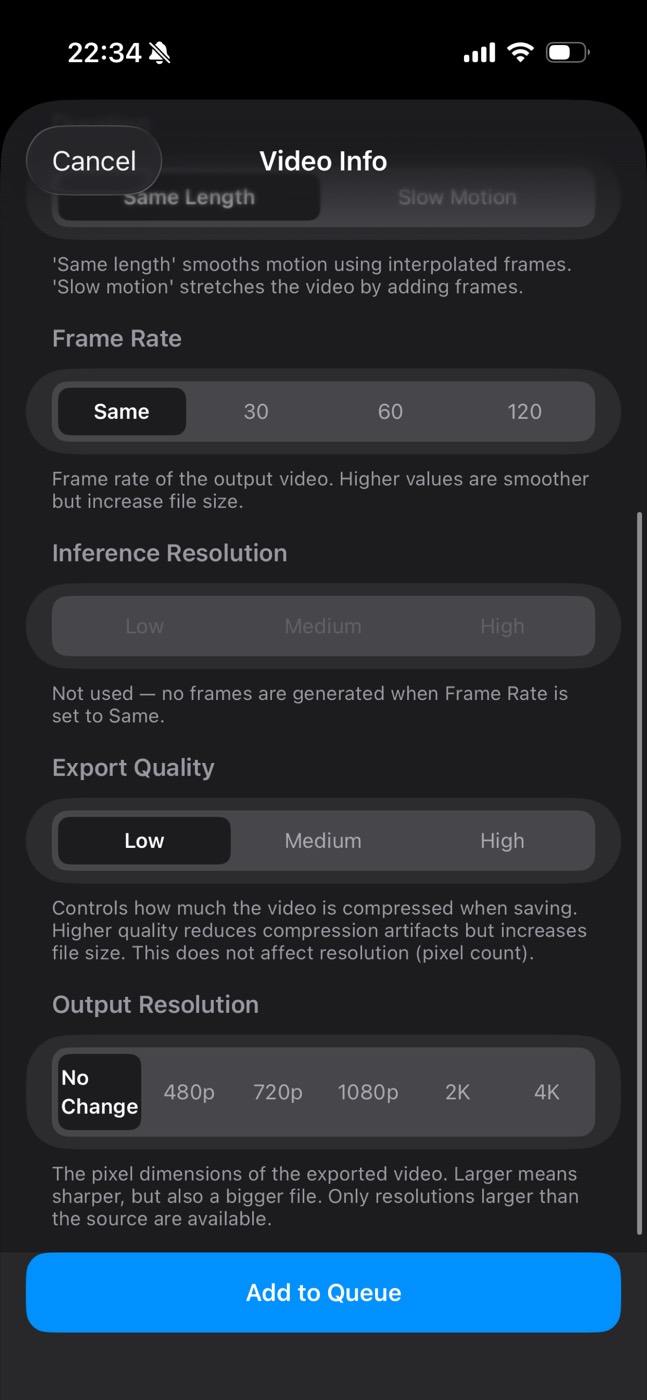
The free version processes recordings up to 10 seconds at up to 60fps, and you can save the result. Longer recordings can be tried free on their first 10 seconds. Unlimited length, 120fps, and higher export quality need Pro, a one-time purchase (see the App Store for the price).
Interpolation only smooths motion. It won't fix blur or mushy text, and it can't restore moments lost to dropped frames.
Find out in 10 seconds whether your recording is just short on frames.
Get FrameFlo on the App StoreFree to try · 60fps results save free · iPhone with iOS 16 or later
FAQ
What frame rate does iPhone screen recording use?
Apple's user guide doesn't give a number (as of October 2026), and screen recordings often have a variable frame rate. The reliable way to know is to check a recording's file; see how to check a video's frame rate on iPhone. On ProMotion models, Low Power Mode caps the display at 60 frames per second.
How do I screen record at 60fps or 120fps on iPhone?
There's no frame rate option for screen recording. The screen capture settings only offer SDR or HDR. What helps is keeping the screen itself smooth: turn off Low Power Mode and Limit Frame Rate, keep the phone cool, and set the game to its highest frame rate.
Why does my game lag when I start screen recording?
Your iPhone is running the game and encoding the screen into video at the same time. Over a long session the phone also warms up, and Apple says frame rates can drop when it overheats. Lower the game's graphics, keep Game Mode on, and let the phone cool between sessions.
Why did my screen recording get choppy after editing?
Probably the variable frame rate. Play the original recording in Photos; if it's smooth, the recording is fine. Re-export from the original, or try a different editor.
Is there an app that fixes a laggy screen recording?
If the recording simply has few frames, a frame interpolation app can make it smoother. FrameFlo converts recordings up to 10 seconds to 60fps for free, including saving. It can't restore dropped moments, and text and UI tend to warp.
Text and menus look warped after interpolation. Why?
Text, thin lines, and UI are the hardest things for frame interpolation to estimate. For recordings that are mostly text, the original often looks better. You can also interpolate only the high-motion parts.
Does this apply to Android or PC recordings?
The same four causes apply: load, variable frame rate, the source frame rate, and re-compression. The settings are different on each platform, though, and the steps here and FrameFlo are for iPhone.

Written by punimaru, the developer of FrameFlo. App details are based on how the app is actually built. Since this is my own app, I've also noted where it isn't the right tool and what else you can use. iPhone settings were checked against Apple Support in October 2026.